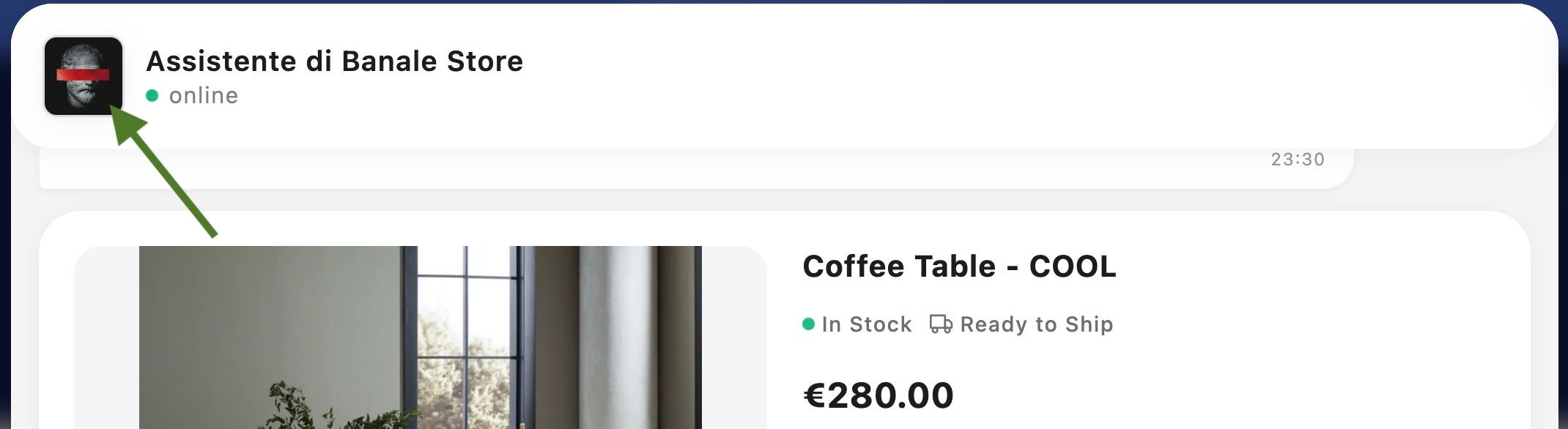
How to Change Your Logo in Buddy AI
Updated
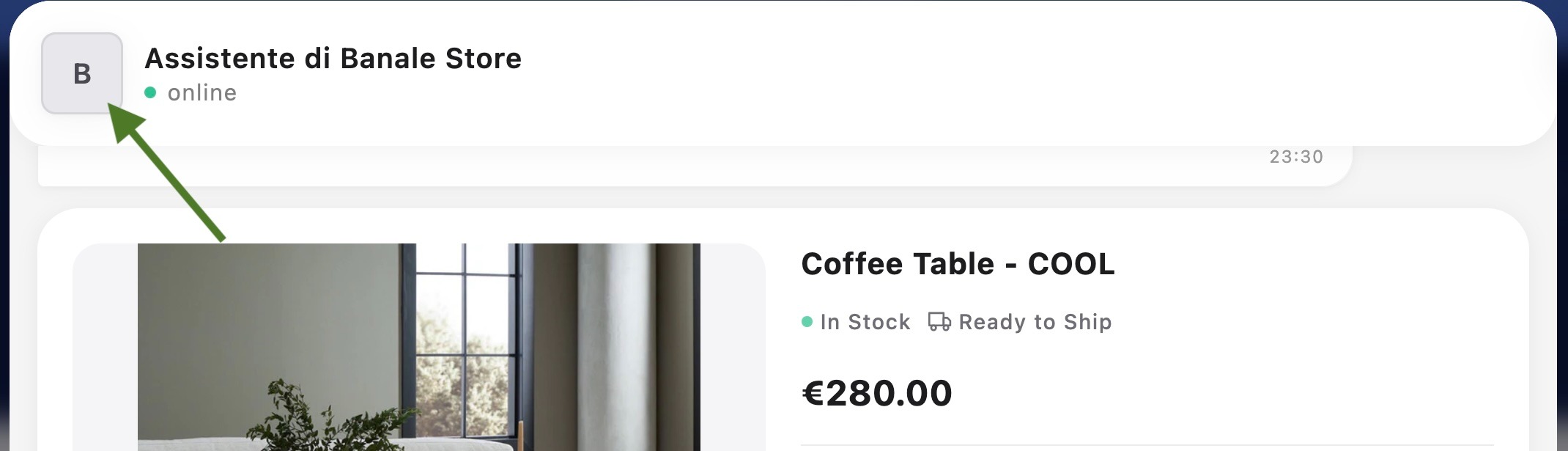
Want your store's logo to show up in the AI Rep chat and on the Smart Shopping page? Here's how to do it in just a few steps!
In this article
We follow Shopify's official Brand Design guidelines and pull your logo directly from your Shopify settings via Shopify's API. We specifically use the Square Logo from your Brand assets. So all you need to do is upload your logo there — we'll take care of the rest!
Step-by-Step Guide
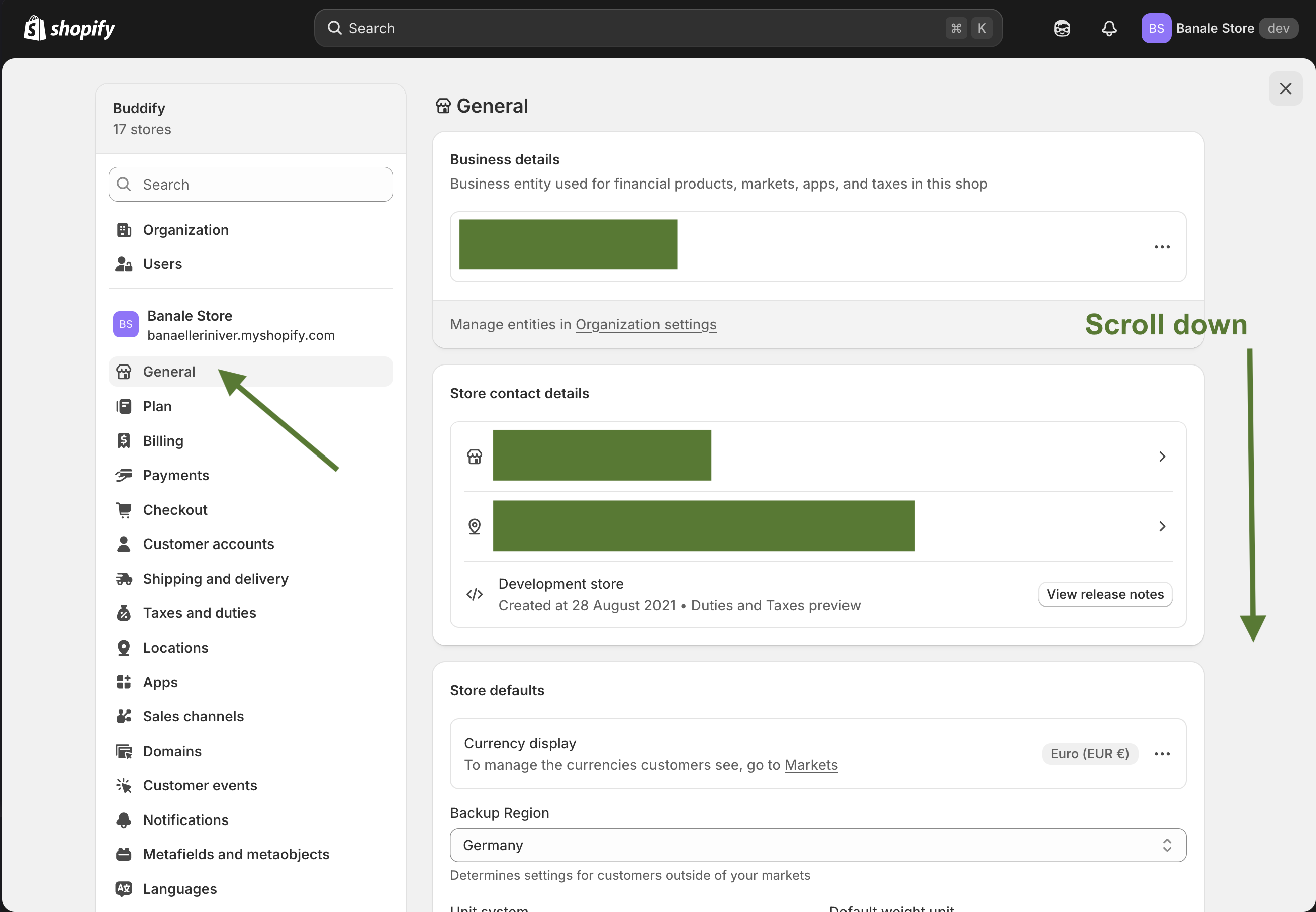
Step 1: Open your Shopify Settings
From your Shopify Admin, click on Settings in the bottom-left corner, then select General from the menu.
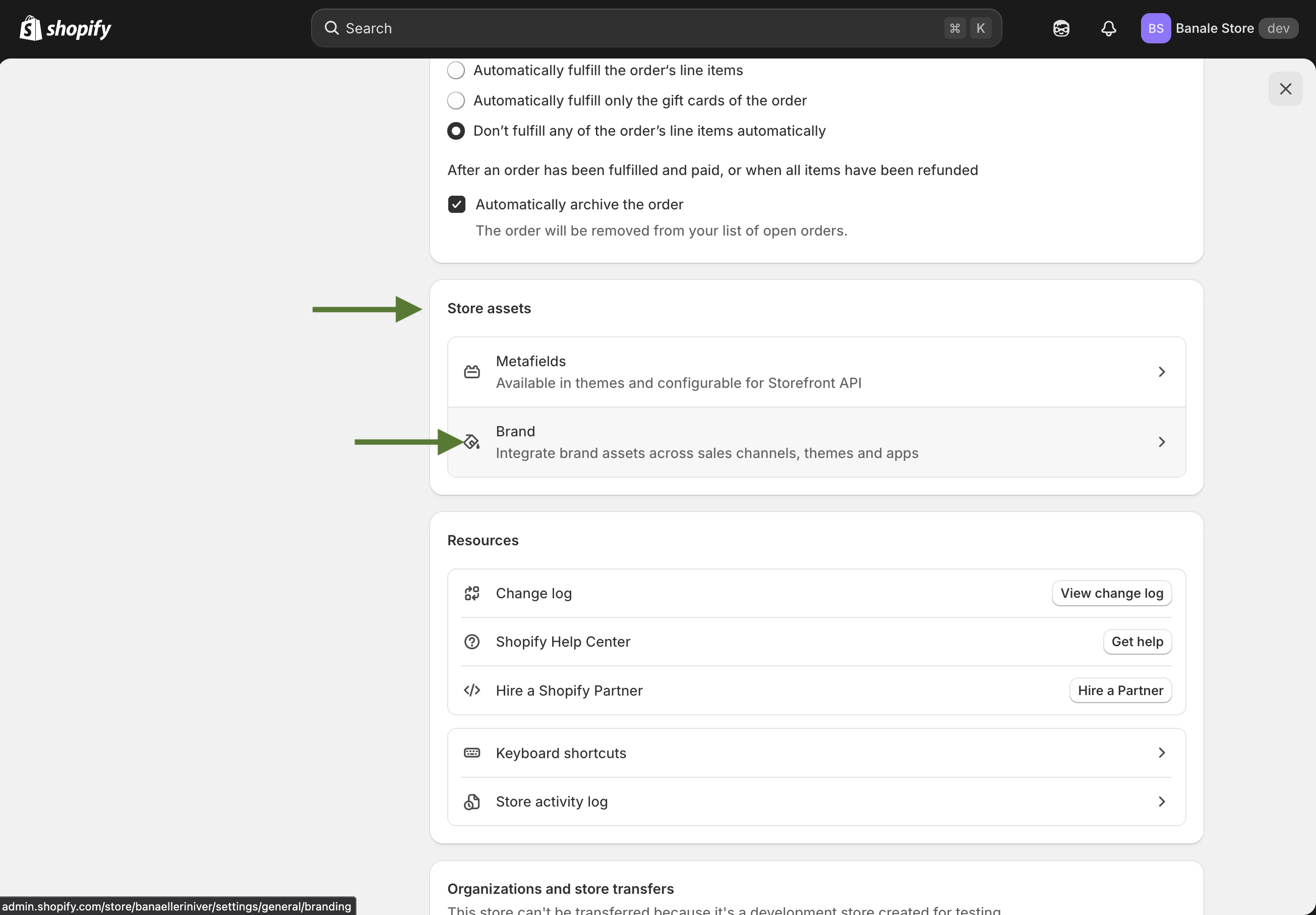
Step 2: Find the Store Assets → Brand section
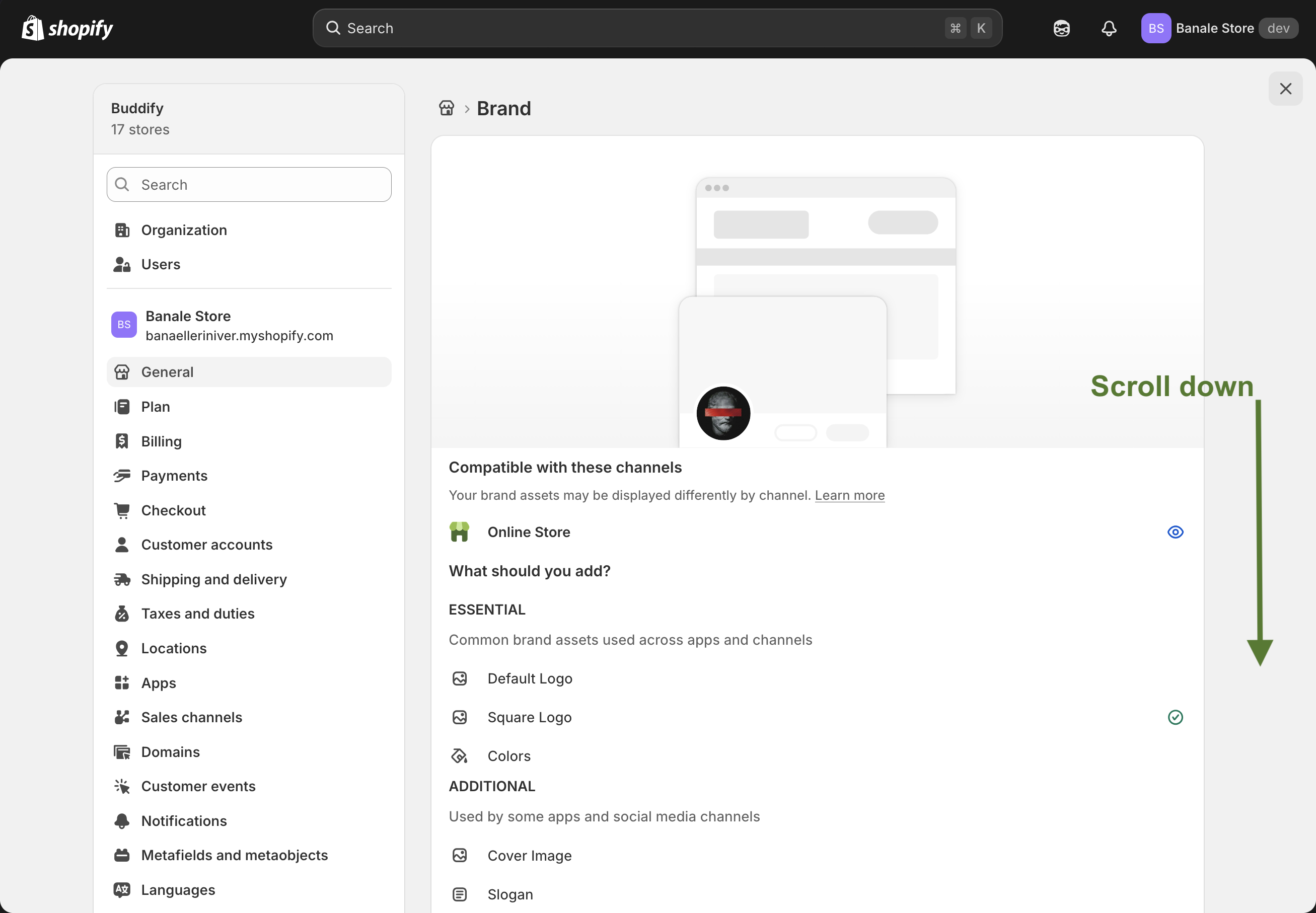
Scroll down the General settings page until you see Store assets, then click on Brand.
Step 3: Head to the Logos section
On the Brand page, scroll down until you reach the Logos section.
Step 4: Upload your Square Logo
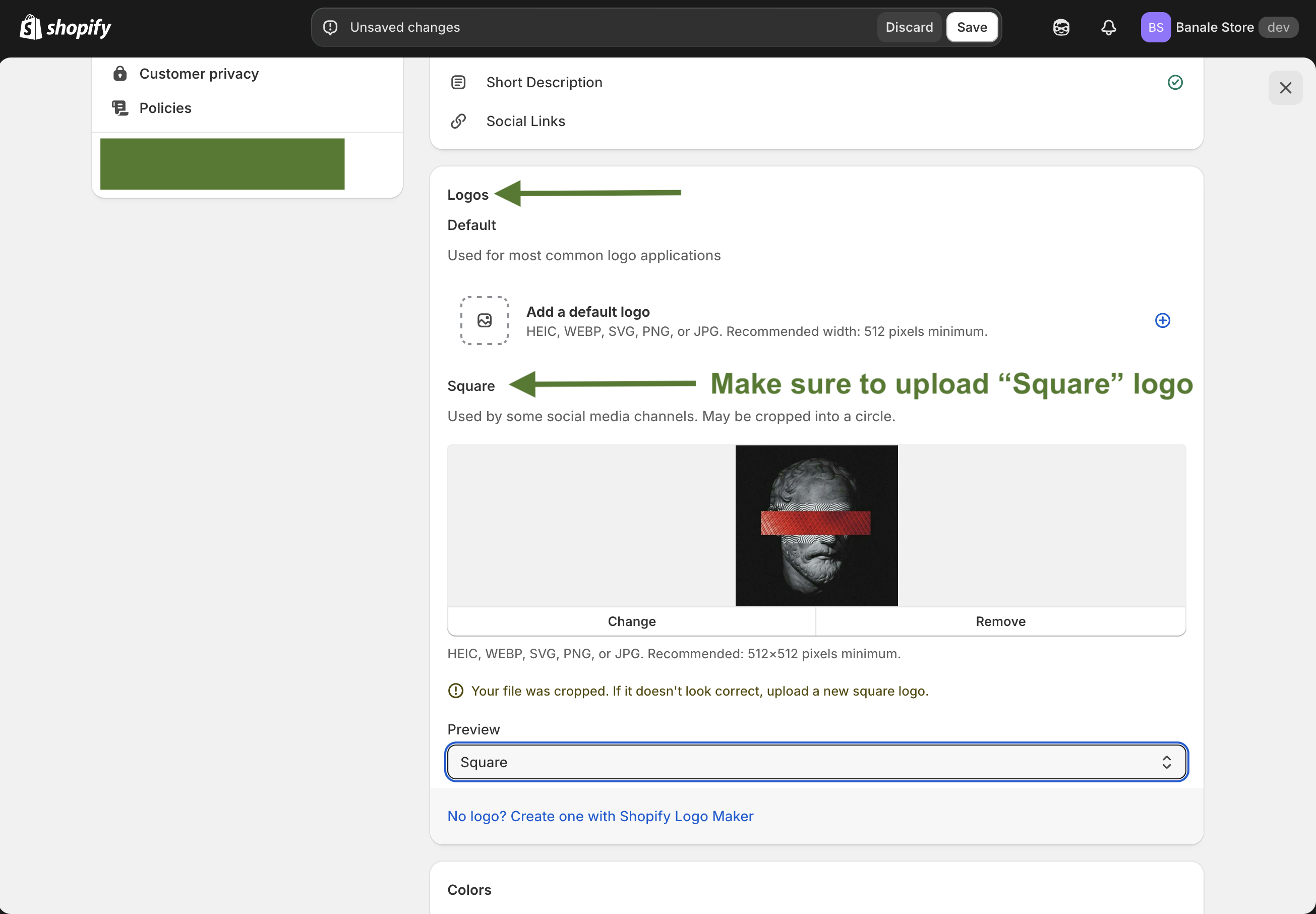
Under Logos, find the Square option and upload your logo there.
Step 5: Save and you're done!
Hit Save in the top-right corner, and your logo will appear in the AI Rep chat and on the main page. That's it!